Bulk Removing Local Inventory

We have around 900 lot ids that need to be removed from our local inventory. When we first started using retailOps we shipped these items out of our facility and did not digitally remove.
Does anyone know how to bulk "remove" inventory through the data import tool? Or any other workaround?
Thanks!
-

Maybe someone else can weigh in on this, but as I see it you have three options:
1. Have support perform this for you. To my knowledge there is no way to do an inventory adjustment via the data import tool, so you can't do it on your own. If you can supply a list of lots to support I would think they could do this for you. There is probably a pro services fee involved for this.
2. Do it manually (yuck). Probably not something you want to tackle, but you could do it through the inventory search manually.
3. Do a cycle count of your warehouse. This is the path I would go, especially because it sounds like you're not doing this currently (your account should require a physical inventory at YE which would have caught this issue). The cycle count tool, like most of WMS in RetailOps is fantastic, and is an absolute miracle for anyone that is used to operating without this type of tool. Get a solid process in place for how often you will cycle count your inventory and stick to it. There are a number of wins associated with doing this.
Hopefully that helps, let me know if you have any questions, and keep us posted on which direction you end up going.
-

Here is an example of what we do:
Updating Quantity via import tool
- Identify (and export CASV using Product search if required) Lot_ID, Container, SKU and Quantity

- Create CSV (or export from RO Product Search) with headers Lot_ID, Container, SKU and Quantity – amend quantity to be new required quantity
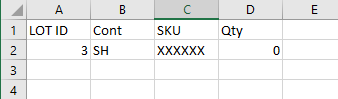
- Upload file into Data Import tool and Select import type Inventory Quantity
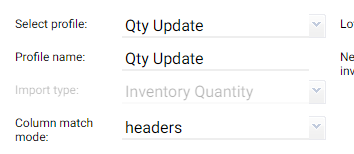
- Map the fields to match in the import
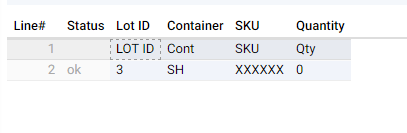
- Click Apply Changes
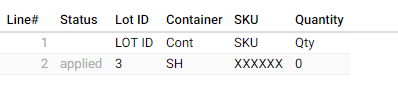
- Validate in the Inventory search that the quantities are gone

I hope this helps - If I missed anything or if you are still stuck please let me know.
- Identify (and export CASV using Product search if required) Lot_ID, Container, SKU and Quantity
-
Jason and Alisdair,
Thank you so much for your help. I used Alisdair's quantity update trick through the data import tool and got this to work! I was able to remove skus that were in our system 100+ days ago and never properly removed...
We have two facilities set up - Office (Photo Studio) and Physical Store. For our store, we have been doing manual counts with a spreadsheet and adjusting inventory one by one since I can't get the Inventory Count tool to work on desktop or tablet.
Here's what it looks like when I get the inventory tool count up and running:
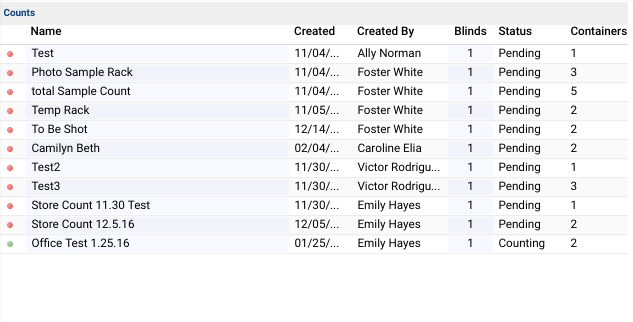
I set up the Count > Set Blind to 1 > Create Containers:
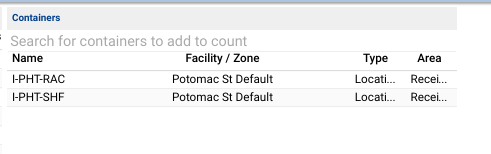 Here's where I am embarrassed to admit I am stumped. What is supposed to happen next? I have tried clicking containers and scan lot IDs...nothing happens. When I click on the containers, I have no other buttons to click.
 If anyone has time, would you mind showing me what it looks like on your end?
On the tablet, I open the inventory count tool, scan location/container > instructions say to scan a lot > but then again, nothing happens when I do so. I have reset the tablet and re-downloaded retailOps multiple times.
I have been asking for assistance from support for weeks and have not been able to get any yet. I was chatting with Victor at one point when the tablet failed me but we couldn't figure out how to reset it.
If anyone has advice, please let me know!
Thanks again,
Emily
-

Emily,
Check out http://help.retailops.com/hc/en-us/articles/204282985-Perform-an-Inventory-Count for what to do next in the Inventory Count process. From the sound of it you are doing the right thing, just not quite enough of it. =)
The physical process for a person counting inventory is:
- scan container (you've done this)
- scan the lot id of each physical item in that container (keep scanning until you've scanned ALL physical items in the container).
- scan the container again (this signals that you've successfully scanned all physical items in that container and you're ready to move on to the next container).
- once you successfully do this your handheld will tell you what container to count next.
- go back to step 1 at your new container.
-
Hi Sam,
Thanks for your response. I need to test this before I scan every single Lot ID.
On the desktop Inventory Count tool, here's what I just did:
I just opened the 1.25 Test Count > Container I-PHT-RAC > Scanned container, then scanned 20 items (Lot IDs) in that container > scanned I-PHT-RAC barcode again.
Nothing on my screen in retailOps has changed. Should anything appear?
I tried to download raw count report and nothing appears on the spreadsheet either. No time elapsed or user progress shows up while I scan either. Do the raw count reports take 3 hrs to populate like other reporting tools?
The help article you shared - section
Create a Count Job and Assign Containers
doesn't show you what to do after step 6 - once containers have been added.
Our tablet is acting up right now so I am trying to first figure the inventory count out on the desktop.
Am I missing something so obvious?
Thanks,
Emily
-
The counting activity must be done using the iOS hand-held device.
I see you have successfully created and made the count active. Now you simply need to use your hand-held device as described in the help article section "Count Items in Assigned Containers".
To be clear, you will not be using your desktop computer for the counting activity.
There is no delay between conducting the count and having the raw count data available for download as there is for the Reporting Tool.
Please sign in to leave a comment.
Comments
6 comments